Home sweet home row
A dear colleague mentioned multiple times that he was waiting for neural interfaces to become a commodity, so he can write code at the speed of thought. And my half-joking answer was "I got one!", holding the two colorfully glowing halves of my ergonomic, mechanical split keyboard into the camera. Everybody laughs, nice standup joke!
Thoughts are slow, fingers are fast#
Except that I wasn't joking. I actually believe that typing is the superior way to communicate with the machine. Thoughts are slow, messy and imprecise. I wouldn't want to "think" each semicolon or bracket. They just flow out of my muscle memory. And for things that actually require thoughts, it turned out that the way from brain to fingertips is an extremely important filter that reveals a lot of misconceptions and mistakes[1].
And even though I'm on the optimistic end of the spectrum when it comes to the different applications of large language models, I am not convinced that the "talk to AI" approach, as advertised by tools like Flow, really is an improvement. Filtering through my "uhm"s, "ah"s and awkward pauses where I just stare at the wall is not a good use of tokens. And it seems like forming and formulating our own thoughts is one of the last muscles to flex.
Why I've used the same keyboard since 2016#
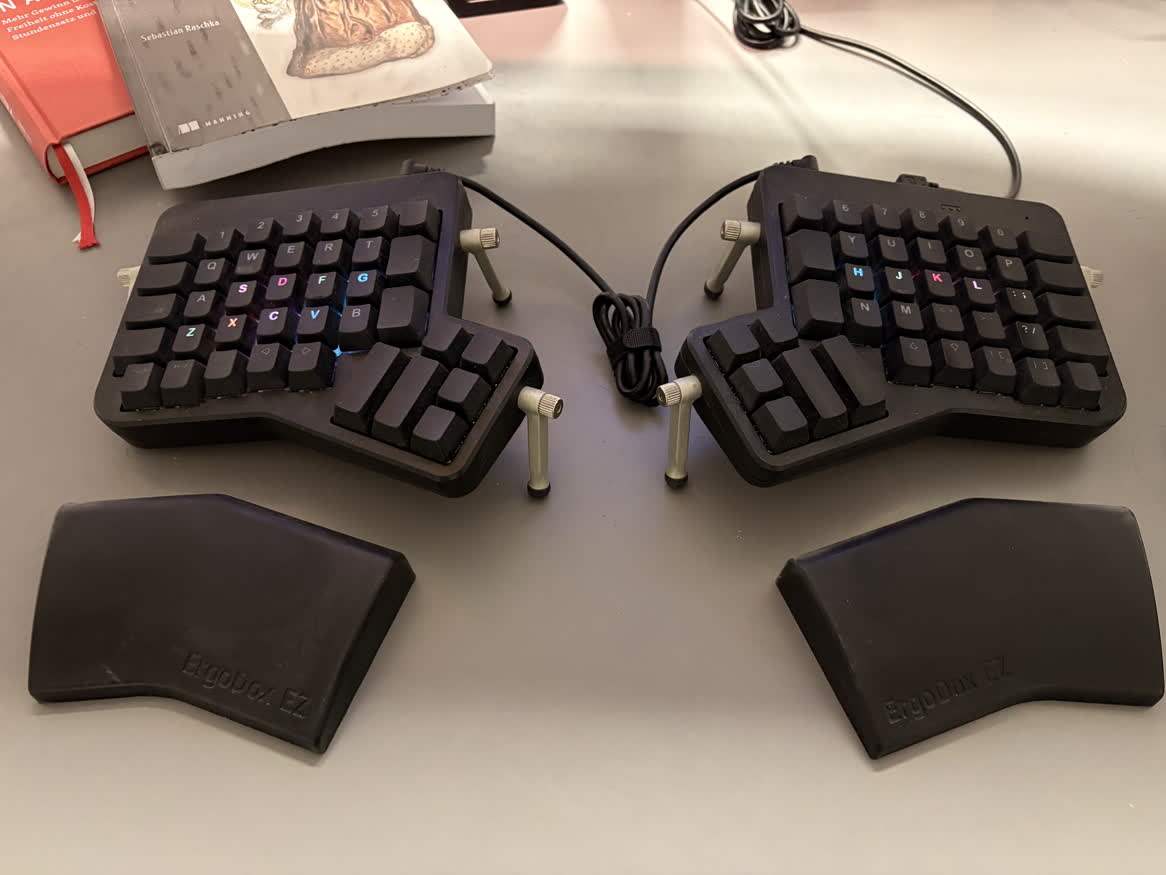
You get the point: I like keyboards. Almost ten years ago, I spent a significant amount of money on two ZSA keyboards, and this investment keeps on giving. I bought their first model, the Ergodox EZ [2]. And I have not been disappointed. The build quality is as great as the software ecosystem around it. From day one I was able to use Oryx, their web-based configuration tool to build my own keyboard layout. Yes, you read correctly, it's web-based. That's because this is not your average Logitech gamer hardware that forces you to install their latest "Logi-whatever-we-call-it-this-year" trojan horse to change one button. The configurator produces a QMK file that gets flashed right onto the keyboard, and from there on it works the same way, no matter which machine you attach it to. I even have a layer configuration that I use to play Overwatch on my XBox 🤯 [3].
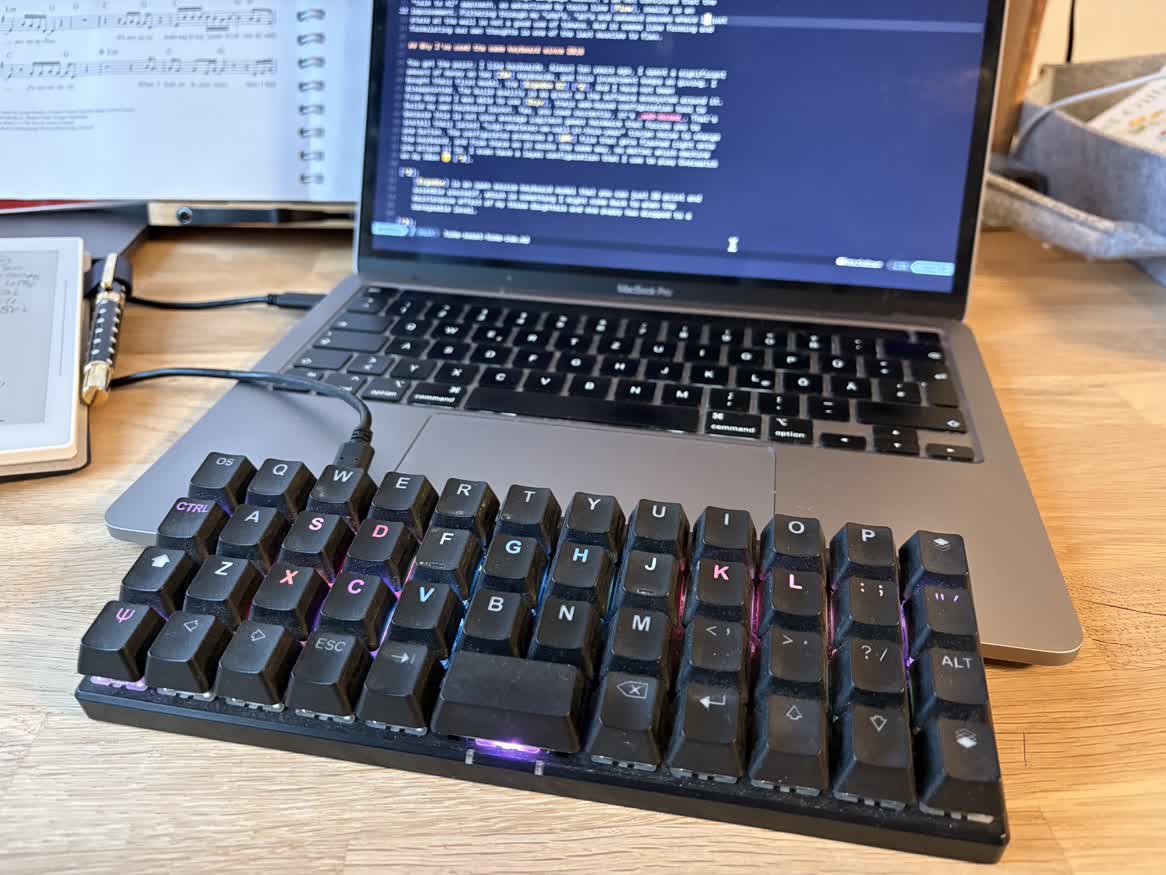
Before the pandemic (and before companies realized that Zoom is cheaper than flights), I used to travel more often and therefore I also bought the Planck keyboard. It allowed me to take my keyboard configuration on the go (and treat my seat-neighbors with some nice clickety-clacking). Unfortunately ZSA discontinued that model. And since I spend most of my work time in my office these days, it has primarily become a nice LED decoration for my Zoom background.
Besides the online configurator, there is also:
I was already a fully satisfied customer, but they did not stop! I scanned the list of improvements that were released over the years.
2019
2020
2021
2022
2023
2024
2025
They released two new keyboards, the Moonlander and the Voyager, and even an attachable track ball. But all the updates and features in this list above are compatible with my keyboard that I bought in 2016, so I never considered upgrading.
Home-row mods: Ctrl, Shift, Cmd under my fingertips#
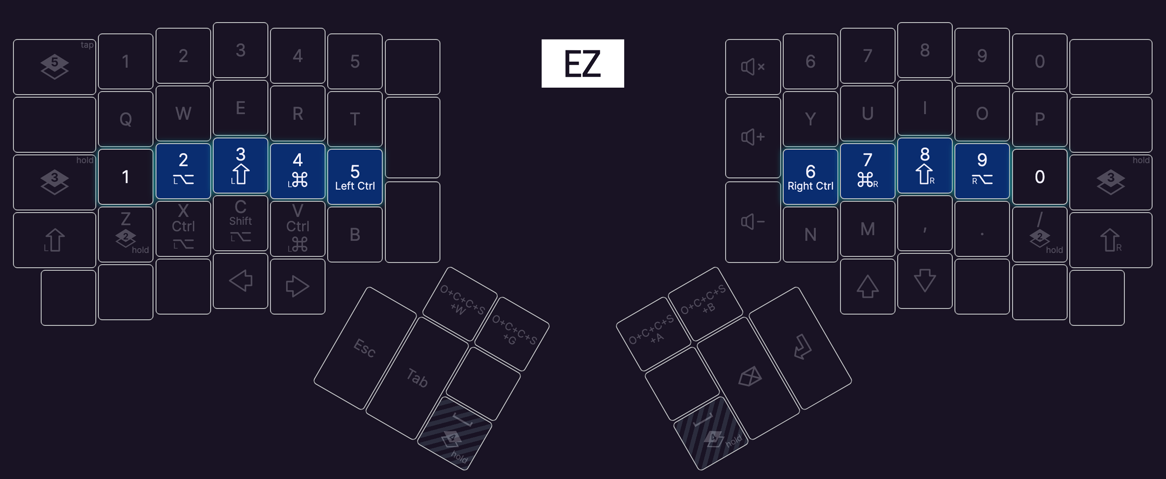
But the most important part is the customizability. I am a
Vim-Guy, which means that my index fingers always rest at F and
J, and the lower their travel distance, the happier I am. So I used the dual
keys feature to overload the so called home row. A dual key allows me to
trigger a key signal when the key is tapped and a modifier when it is held. So I
have Ctrl, Shift, Cmd and Option at my fingertips without moving
anywhere[4]. x, c and v do the same, but with double modifiers, which I
use for pane, tab and window management and jumping to specific applications.
The thumb-blocks give me fast access to Esc, Tab, Space, Delete and
Enter.
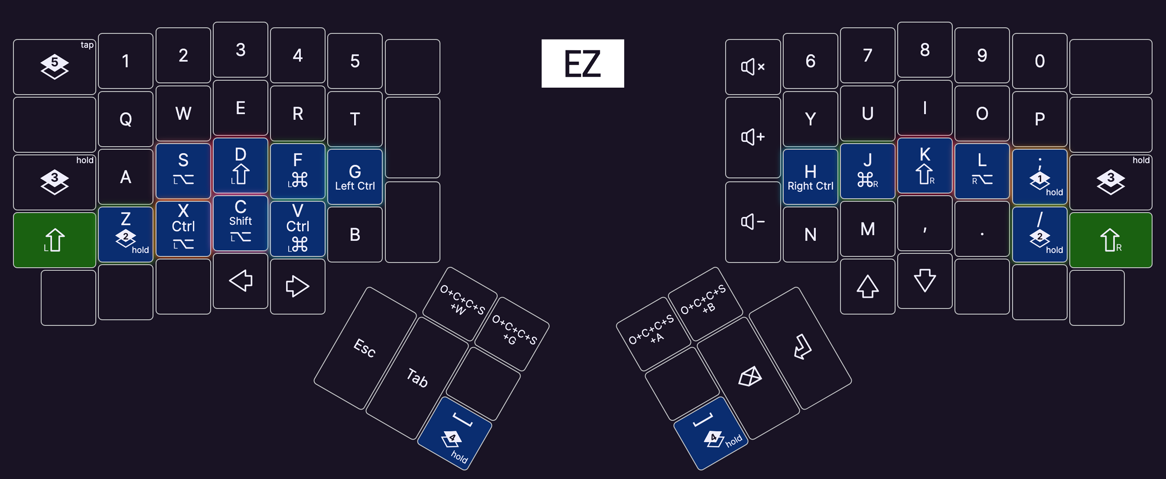
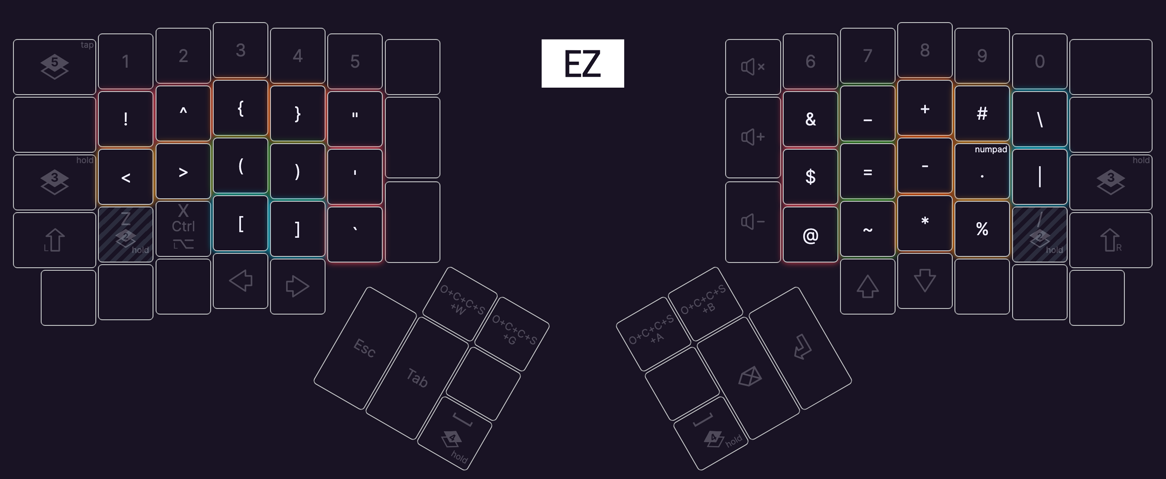
z and / are dual keys as well, but they switch the rest of the keyboard to a
Symbols layer where I have all the parenthesis, brackets, backticks and
mathematical symbols close to my fingers.
Holding spacebar switches to a Numbers layer that puts 1 to 0 onto the
home row for quick access.
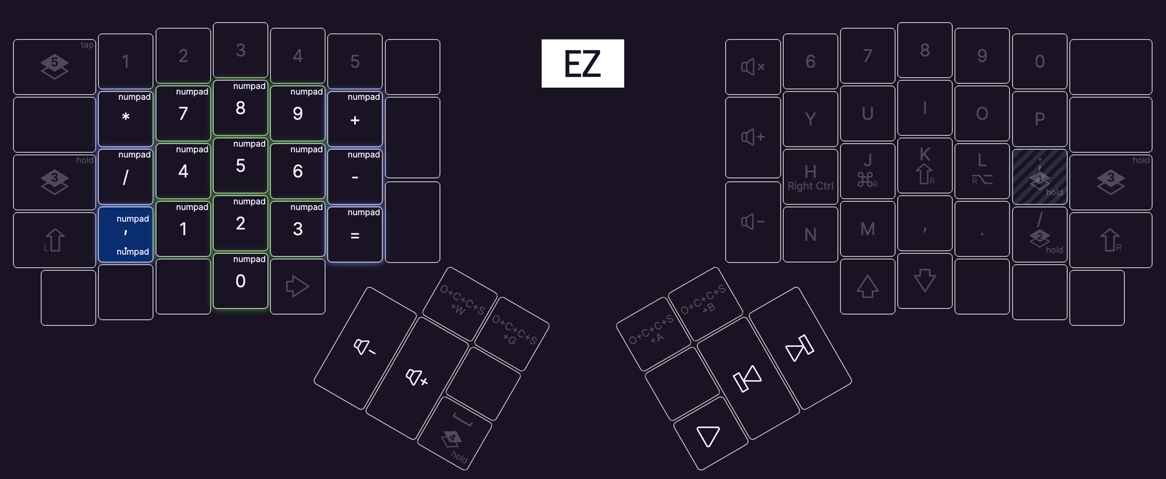
; puts a full numblock to my left hand, but to be honest, I even forgot I have
that one.
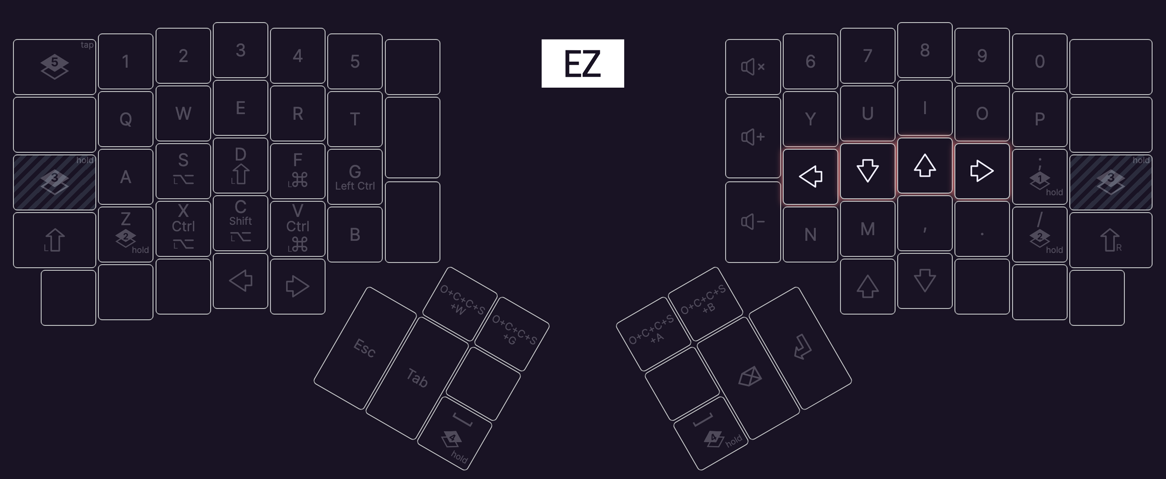
Holding the key left to my left pinky will put arrow keys to h, j, k and
l, which is scientifically proven the natural way of navigating in the four
directions. The keyboards also provide a mouse emulation, that moves the mouse
cursor and sends click events via the keyboard. I tried to force myself to use
that instead of my mouse for some time, but it is rather cumbersome (unless I'm
missing some magic trick). It is way more efficient to eliminate mouse usage
entirely.
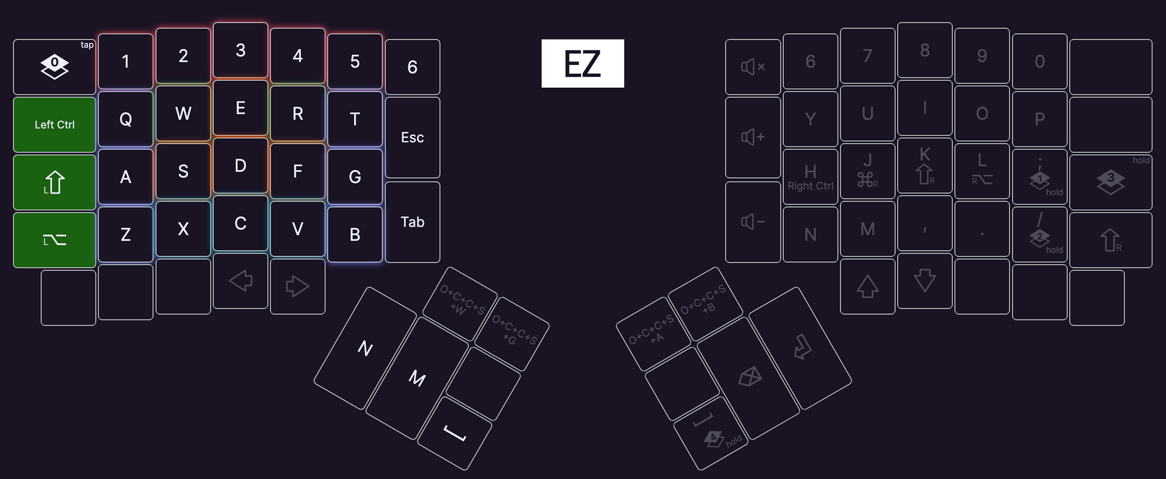
And last but not least the top left button on the keyboard switches it permanently into Gaming mode, which basically puts all standard keys onto the left hand without any extras, allowing me to use them as standard shortcuts in the occasional Starcraft match. Does not stop a 14-year-old from wiping the floor with me though.
Feel free to look at the full configuration and fork it if you like!
Yes, I can still use a normal keyboard. I just don't want to.#
This all sounds very complicated and inconvenient, and there surely is a learning curve to it. But the split position does wonders for my neck and shoulder posture, and the home-row layout reduces finger-spreading to a minimum. And when working with a keyboard all the time for years on end, that makes a huge difference.
I did fear in the beginning that I would not be able to use a standard keyboard any more, but that was interestingly not true. I can still work reasonably fast on my standard MacBook keyboard if I have to. But it does not light up in Catppuccin color codes to match my terminal theme, so why would I want to?
Footnotes#
-
I am not oblivious to the irony that this is exactly what people say about handwriting. But handwriting has no vim-motions. Case dismissed. [↩]
-
Ergodox is an open source keyboard model that you can just 3D print and assemble yourself, which is something I might come back to when the maintenance effort of my three daughters and one puppy has dropped to a manageable level. [↩]
-
I am still looking for the same qualities in a mouse. There is Ploopy, but I'm not sure about their ergonomic qualities. [↩]
-
I swear I came up with this myself, just to learn from the Ergo that this is a thing called "Home row mods" and not that inventive 😅 [↩]